JupyterHub Help
Use this page to access and navigate the course JupyterHub.
How to access JupyterHub
- Go to https://cmpsc-5b.lsit.ucsb.edu/. (You can also find this same link on Canvas.)
- Log in with your UCSB NetID and password.
- Complete Duo authentication if prompted.
What you should see after login
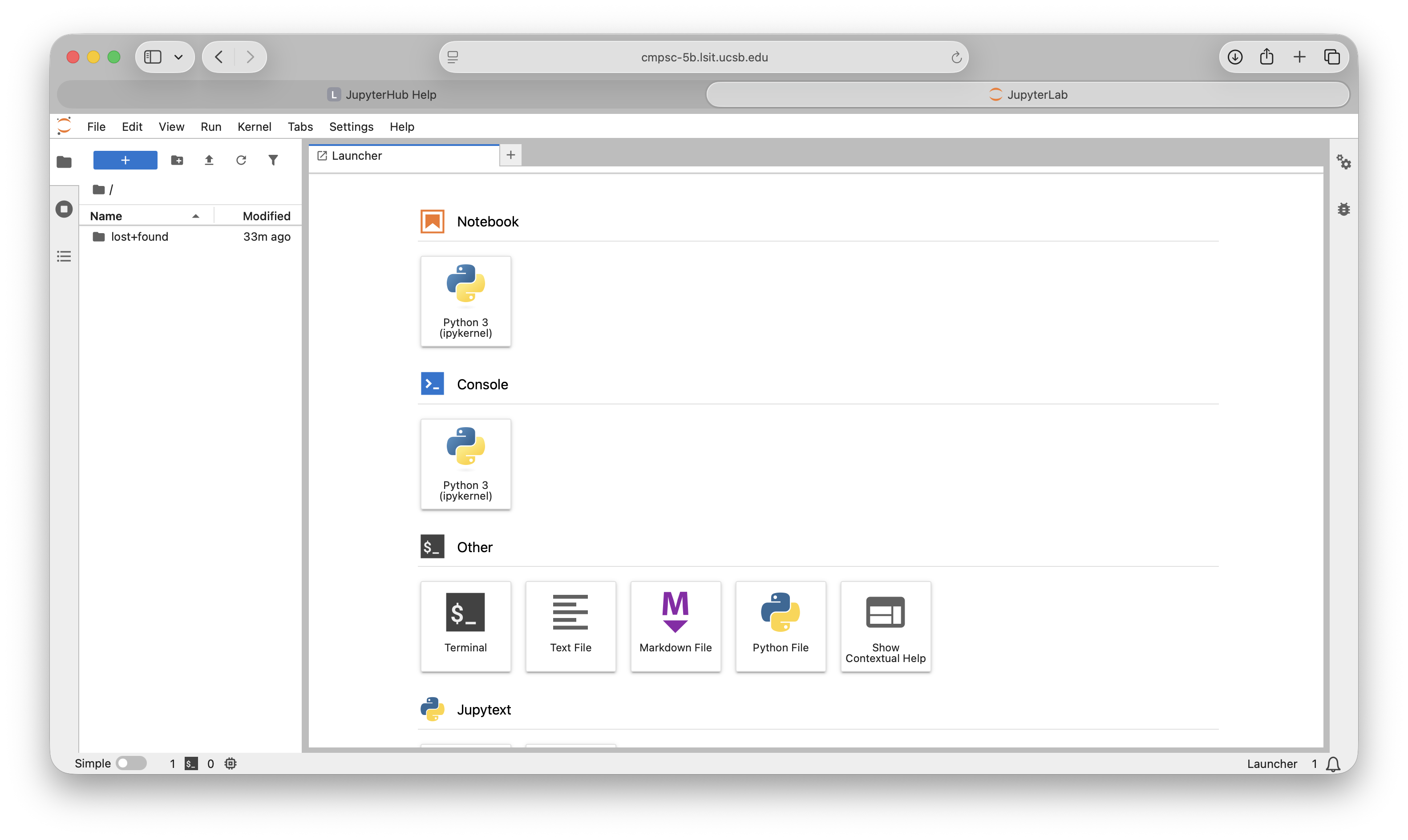
After logging in, you should land on the JupyterLab launcher page.
Basic navigation in JupyterLab
- Use the left panel (File Browser) to see folders and files.
- Click Python 3 (ipykernel) in the Launcher to create a new notebook.
- Use Terminal (in the Launcher) when you need command-line access.
- Use the top menu bar (
File,Edit,Run,Kernel, etc.) for notebook actions. - Use the tabs at the top to switch between open notebooks/files.
- Save work often using
File -> Save Notebook. - Rename files by right-clicking them in the file browser and selecting
Rename. - When finished, close notebooks and log out from
File -> Log Out.
Quick start for class work
- Open JupyterHub and log in.
- Click Python 3 (ipykernel).
- Run cells with
Shift + Enter. - Save your notebook before leaving.