Setting Up SSH Keys for GitHub
SSH keys let GitHub know it is you, without typing your password every time.
Do this once on each machine you use for class:
- JupyterHub terminal
- your laptop terminal
- a lab machine terminal
Some screenshots below are from JupyterHub, but the same commands work in any terminal.
When should I do this?
Do this before cloning/pushing course repos.
Why SSH instead of HTTPS?
- Fewer login prompts
- Works smoothly in JupyterHub and terminal workflows
- Common setup in CS courses and real projects
Steps
-
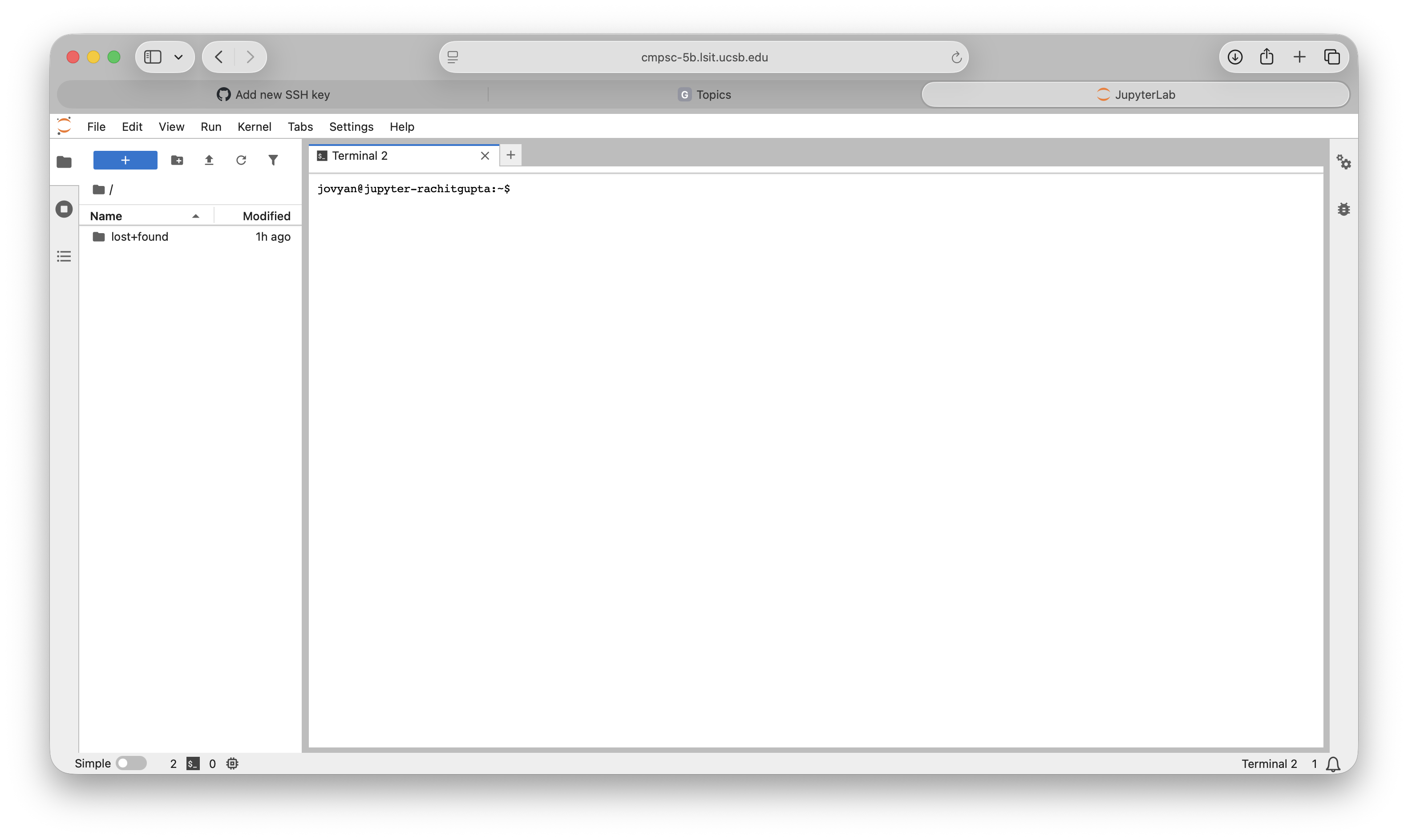
Open a terminal.
-
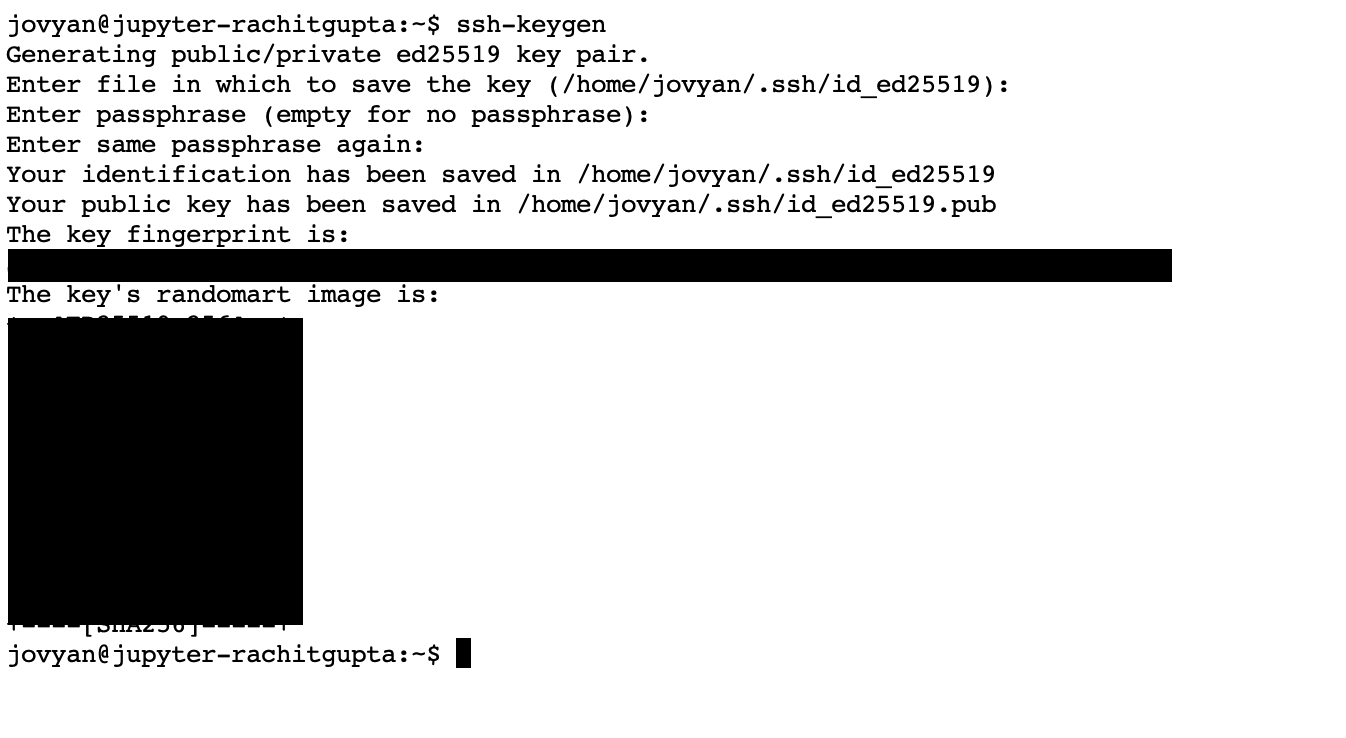
Make a key:
ssh-keygenPress
Enterfor each prompt (file location + passphrase) if you want the default setup.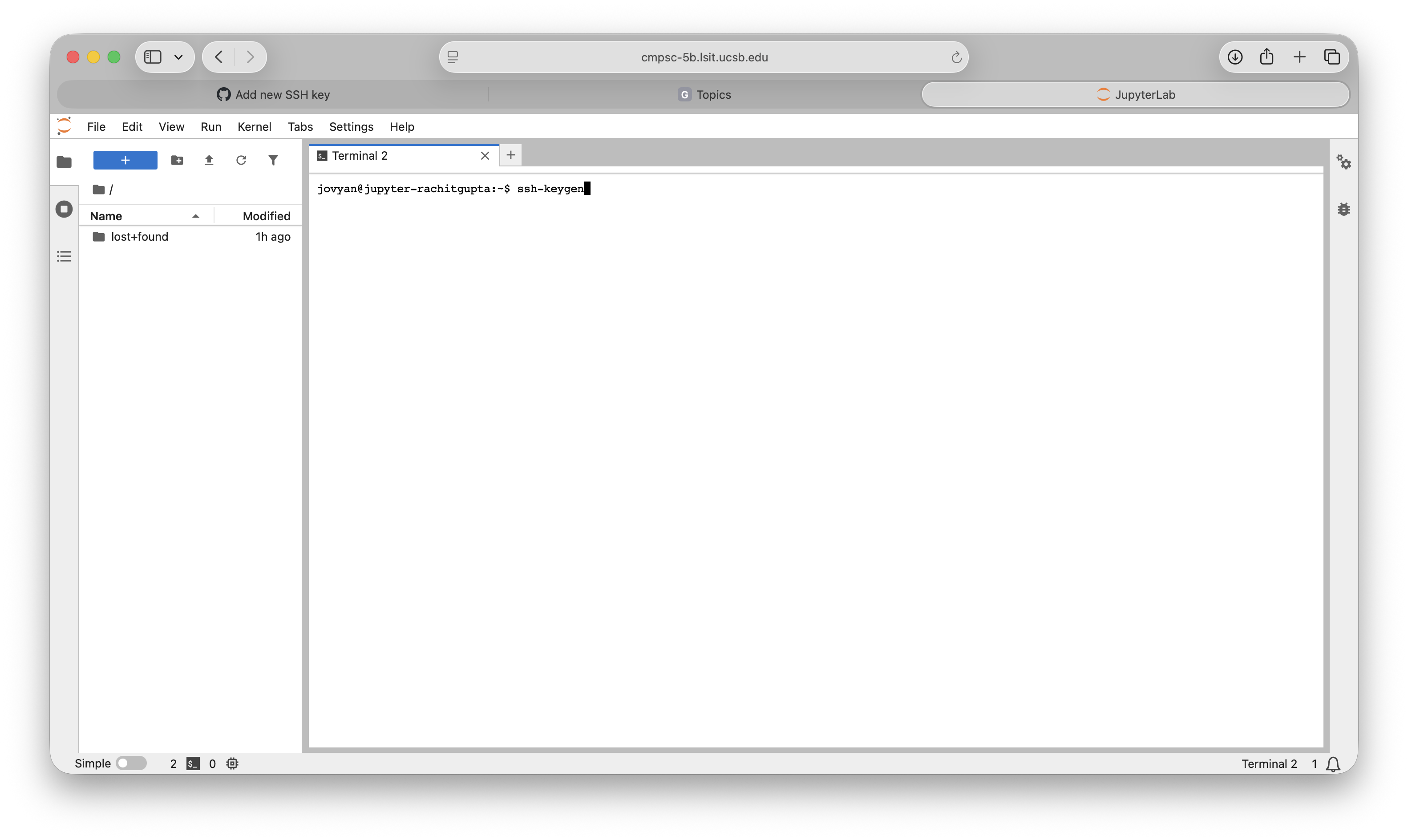
-
Check that keys were created:
ls ~/.sshYou should see at least:
id_ed25519 id_ed25519.pub -
Show your public key:
cat ~/.ssh/id_ed25519.pubCopy the full line.
-
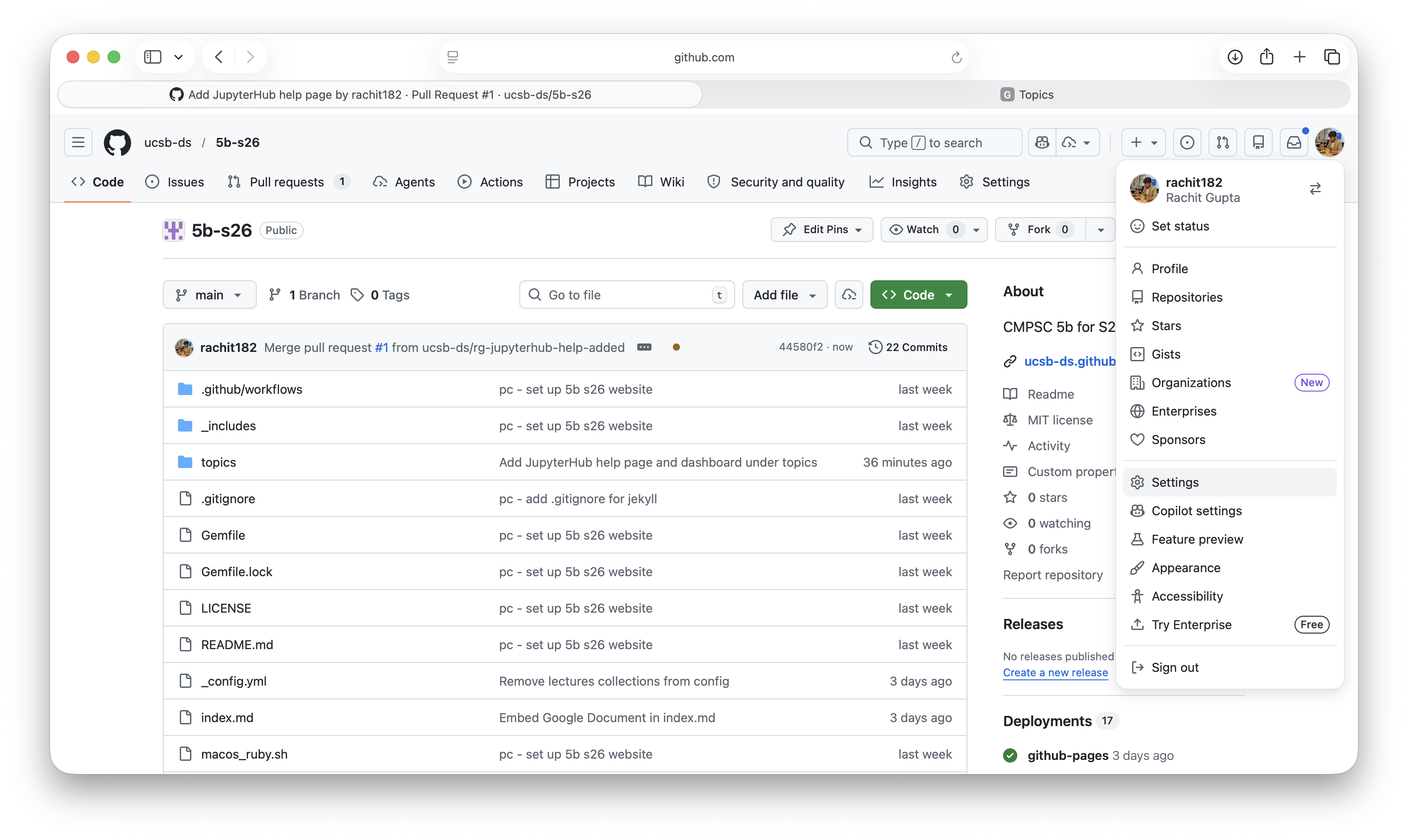
In GitHub, go to Settings.
-
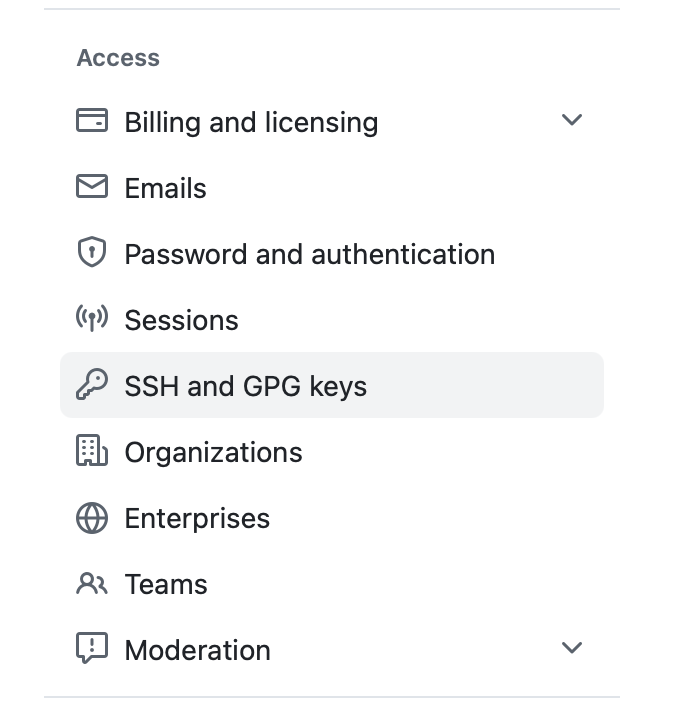
Open SSH and GPG keys.
-
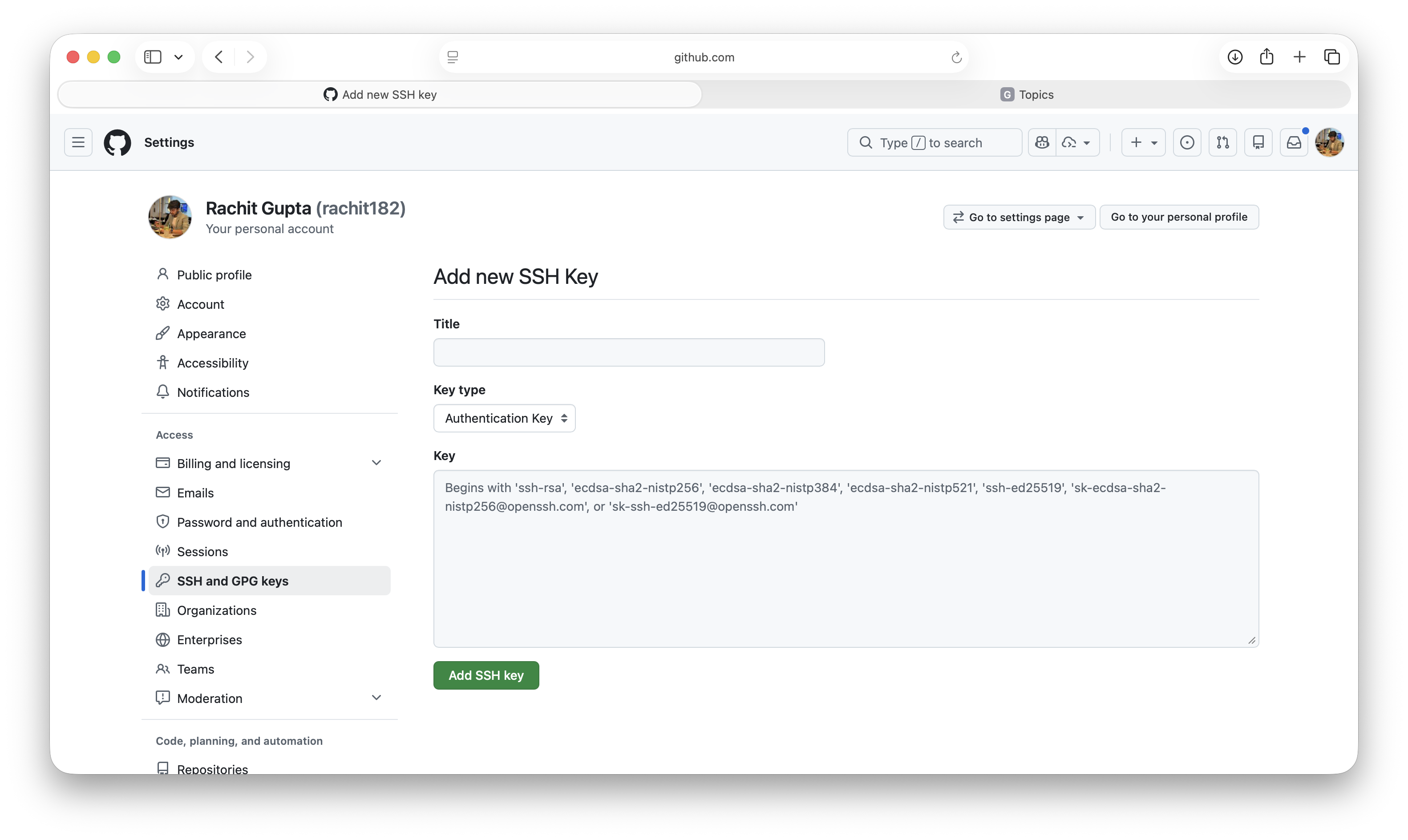
Click New SSH key and paste your public key.
- Title: use something clear like
jupyterhubormy-laptop - Key type:
Authentication Key
- Title: use something clear like
Quick troubleshooting
Permission denied (publickey): Key was not added to GitHub, or wrong GitHub account is logged in.- Remote starts with
https://: Switch to SSH remote. - No
~/.sshfolder: Runssh-keygenfirst. - Copied wrong file: Copy
id_ed25519.pub, notid_ed25519.
Important
Never share your private key (~/.ssh/id_ed25519).
Only copy/share the public key (~/.ssh/id_ed25519.pub).